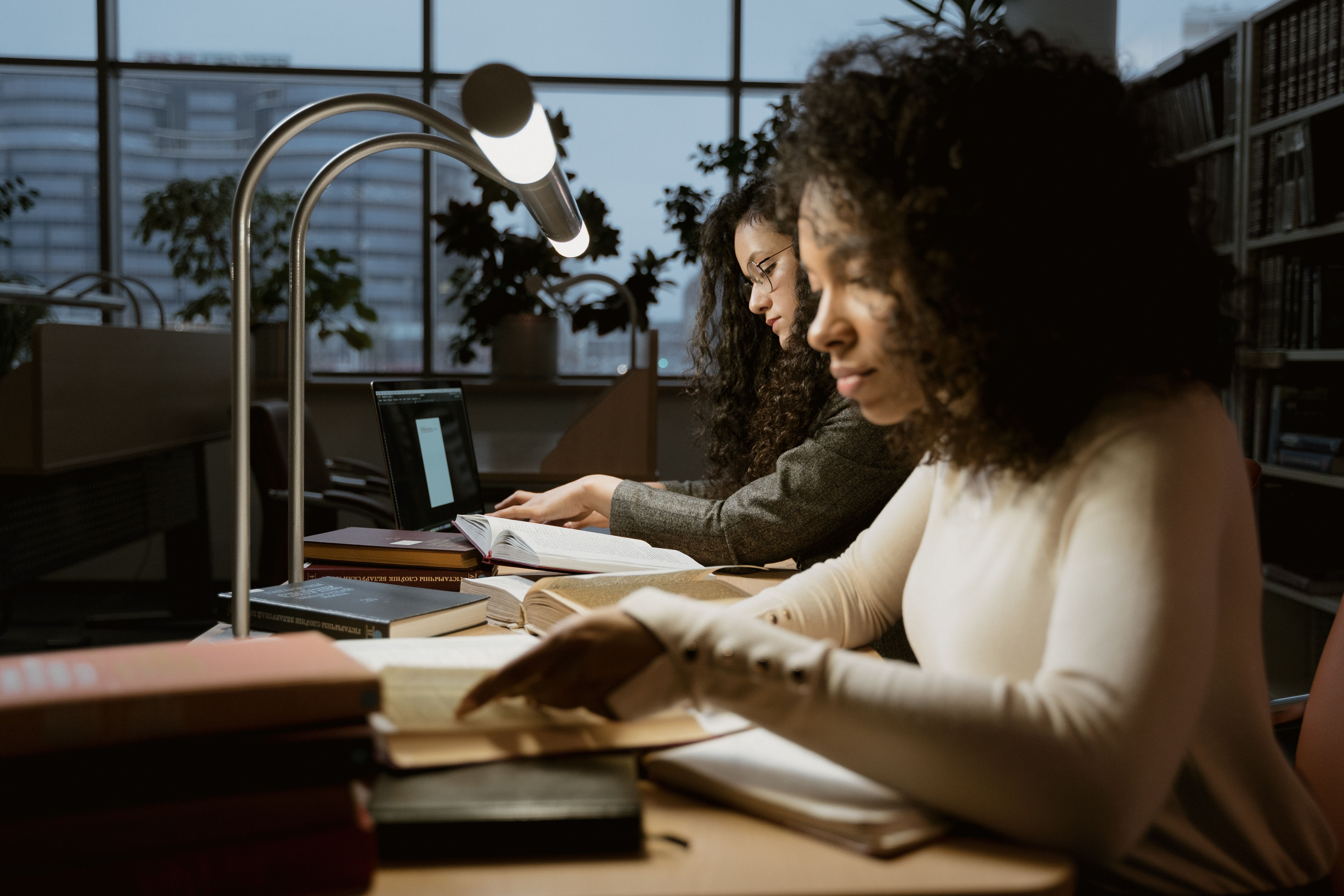
Is your screen fighting the light in the room?

Nicola Tik
Most of us never think about the light we work in until our eyes feel tired and gritty by mid-afternoon. Often it is not the screen itself but the mismatch between the screen and everything around it. Your screen should be easy to read without appearing to glow like a lamp, and when it is much brighter or darker than the room, your eyes have to keep adapting between different light levels. Glare, reflections and big differences between bright and dim areas can all add to visual discomfort, tired eyes and headaches.
Turn on enough general lighting to see your desk, keyboard and the area around your screen comfortably, and avoid working with a bright screen as the only light in a dark room. Where you can, position the screen so neither you nor the screen directly faces a window. Sitting at roughly a right angle to the window usually makes reflections easier to control, and softening bright sunlight with a blind or curtain works better than turning the screen up to its maximum.
A blank document, email or mainly white webpage gives you a consistent surface to judge the screen by.
Put a sheet of white paper beside the screen under your usual lighting, then look at the paper and the white part of your screen from where you normally sit.
The two do not need to match perfectly. You are just making sure the screen is not the brightest or darkest thing in front of you. There is no single correct percentage either, since 50% looks very different on different monitors and the right setting shifts as the room changes.
Show a dark image or turn the screen off for a moment, then look for windows, ceiling lights or lamps reflected back at you. If you can see one clearly, it usually helps to try these before touching the brightness:
Turning the brightness up might make things easier to see, but it does not remove the source of the glare.
When text feels hard to read, more brightness is not always the answer. You could try:
For most work in a normally lit room, dark text on a light background is clear and copes better with reflections than light text on a dark background.
A setting that feels right in the morning can be too dim in bright afternoon sun or too bright after dark. It is worth repeating the white-page check when:
Automatic brightness helps, but it is still worth a quick look to check the result suits your space.
Light also has a colour tone. Cooler light looks slightly blue and suits daytime, while warmer light looks slightly yellow and often feels gentler on the eyes in the evening. Most phones, tablets and computers have a setting that warms the screen as the day goes on, usually called something like Night Light or Night Shift in your display settings. Many people find it more comfortable, though it works best alongside sorting out your brightness, glare and room lighting rather than instead of them.
It is also worth knowing that blue-light filtering glasses are not a reliable fix on their own. A Cochrane review of 17 randomised trials found they probably make little or no difference to computer-related eye strain.
Your lighting is probably about right when: